Screen sharing app for Mac that shares just part of your screen
Pick an area of your ultra-wide monitor and share only that area in Google Meet, Zoom or Microsoft Teams. Everything else stays private.
Free 7-day trial · No payment details · macOS 15.2 or later
Works with Google Meet, Zoom, Microsoft Teams and other apps that share a window.
How it works
Select an area
Drag the frame to pick the area you want to show.
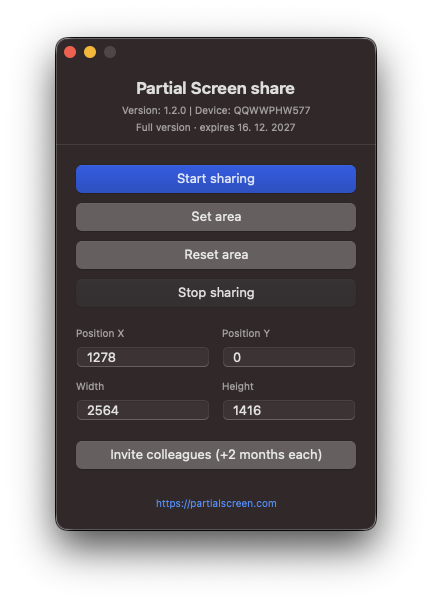
Start sharing
Click "Start sharing". Partial Screen prepares a window with just that area.
Share the window
In Meet, Zoom or Teams, share the window named "Partial Screen - Output".
Why not just share your whole screen?
On an ultra-wide monitor the other side sees everything you have open, and none of it is large enough to read.
Whole screen
- Everything is illegibly small for the people in the call.
- Notifications, open tabs and documents go out with it.
- You rearrange windows before every call.
Partial Screen
- Only the area you pick is shared, at a size people can read.
- Everything outside the area stays private.
- Your windows stay where they are.
Key Features
Flexible area selection
Drag a transparent frame to pick the area, or type in exact coordinates.
Any call app
Works with Google Meet, Zoom, Microsoft Teams and other apps that share a window.
Click highlights
Participants see exactly where you click, so nobody has to ask what you just opened.
Nothing is recorded
Partial Screen records nothing and uploads nothing. The area you pick goes straight into the window you share.

"I developed this app after trying about 20 different alternatives and even purchasing several of them, but none worked properly or were simple enough to set up."
Jiří Zapletal
Software engineer, author of Partial Screen
Pricing
We are still working on pricing, so Partial Screen is free for now. Start with a free trial, then extend it with free upgrades.
Free trial
$0 for 7 days
The full version of Partial Screen. Create an account and start sharing right away.
No charge after the trial. Keep it free with the upgrades below.
Get Free License- No 4-minute sharing limit
- License key right after sign-up
- No payment details required
- Works with Google Meet, Zoom and Teams
Free upgrades
Extend your license at no cost. The upgrades add up.
+6
months
Fill in a short survey
8 quick questions, about 2 minutes. You can answer them any time, even before the trial.
Fill in the survey →+2
months each
Invite colleagues
For every colleague who uses Partial Screen for at least 7 days and fills in the survey.
Log in to get your invite link →Questions before you install
Why does Partial Screen need Screen Recording permission?
macOS treats any app that reads the screen the same way, whether it captures the whole display or a single area. Partial Screen needs the permission to copy the area you select into the window you share. Without it, macOS hands the app an empty picture.
Does anything leave my Mac?
Only what you choose to share. Partial Screen records nothing and uploads nothing: the area you pick goes into the window you share, and from there your call app sends it to the meeting like any other shared window. Our server only ever sees your license key and the device it runs on.
How do I share just one part of my screen in Zoom?
Zoom can do it on its own: Share Screen, then the Advanced tab, then Portion of Screen. You set the frame up again in every call, and no other app offers it. With Partial Screen you pick the area once and share the window named "Partial Screen - Output" in Zoom, Meet or Teams alike.
Can I share a single area in Google Meet or Microsoft Teams?
Not on their own. Meet offers a tab, a window or the whole screen, and Teams a window or a display. Partial Screen turns the area you select into a window, and you can share that window in both.
Which video call apps does it work with?
Google Meet, Zoom, Microsoft Teams and any other app that can share a single window. In the sharing dialog you pick the window named "Partial Screen - Output".
What happens after the 7-day trial?
Nothing is charged and we never ask for payment details. Sharing goes back to 4 minutes at a time until you extend the license, which is free: 6 months for filling in the survey and 2 months for every colleague you invite.
Which macOS version do I need?
macOS 15.2 or later. The app uses the current screen capture interface from Apple, which older versions do not provide.
How do I uninstall it?
Quit Partial Screen and drag it from Applications to the Trash. You can also remove it from System Settings, under Privacy & Security and Screen Recording.
Sharing in a particular app? Read the guide for Zoom, Meet and Teams, or write to us.
Share only what matters
Download the screen sharing app for Mac and try the full version free for 7 days.